


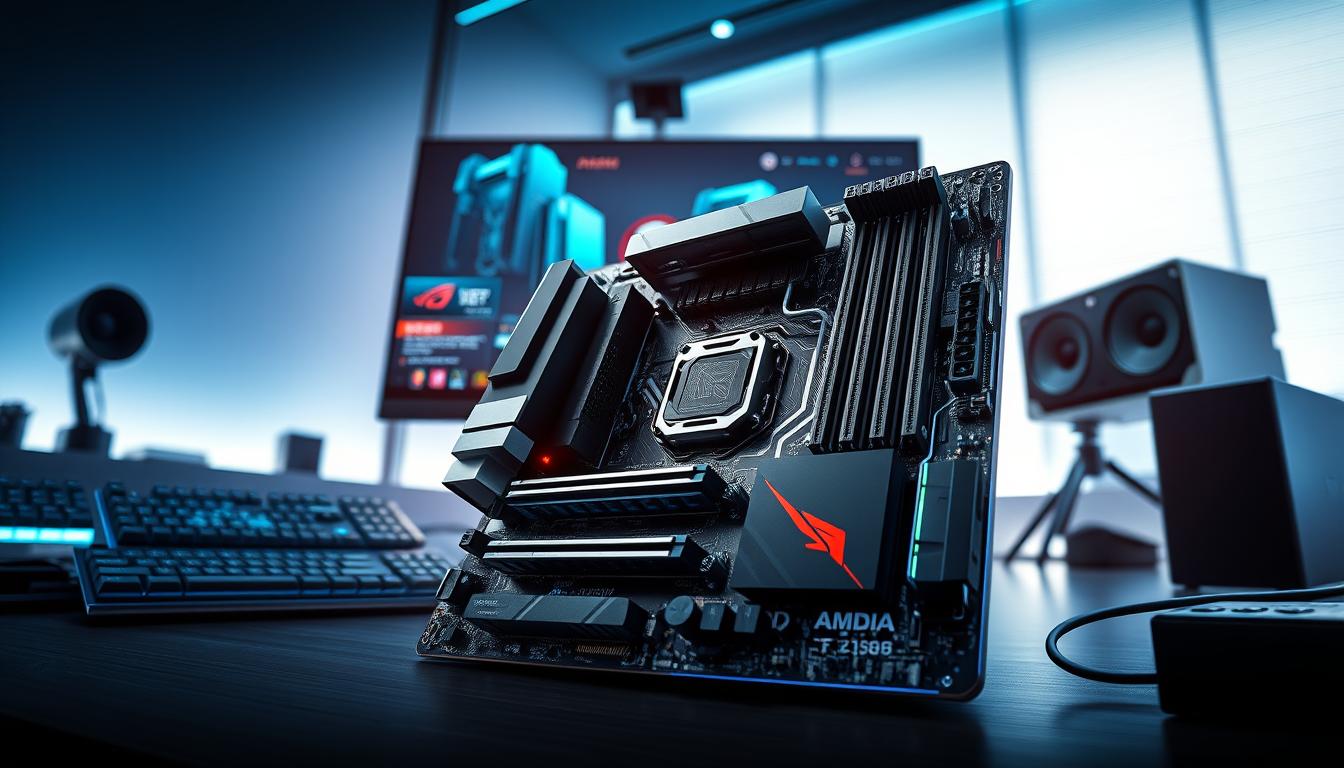
Nearly 60% of new Ryzen builds now use AM5-class boards, a shift that changed upgrade plans for gamers and creators overnight.
We introduce our roundup to match budgets, sizes, and use cases. We focus on the clear features that matter today: power delivery, storage lanes, and practical USB ports.
The AM5 platform supports modern amd ryzen CPUs and offers chipset options from value B650/B850 to X670/X870 and X870E. That jump affects PCIe 5.0 lanes, native USB4 on select boards, and expansion choices for GPUs and fast storage.
We explain how price, features, and real-world performance intersect so you avoid overspending on unused specs. Our picks lean on testing data and practical usability, not only spec sheets.
For deeper model-level context and our full testing notes, see our guide at this roundup.
Key Takeaways
- AM5 supports Ryzen 7000/9000 and scales across B650/B850 to X670/X870 tiers.
- Prioritize VRM quality, M.2 cooling, and rear USB 3.2 or USB4 ports you will use.
- PCIe 5.0 helps future-proof storage and GPUs but may not matter for all builds today.
- Form factor and airflow affect compatibility and thermals, especially in compact cases.
- Value options can save money while keeping essentials like M.2 heatsinks and high-speed USB.
Our top picks at a glance for the best AM5 motherboards
To help you shortlist quickly, we lay out our top board picks by segment and highlight where each shines. Below are compact summaries so you can compare price, ports, and core features at a glance.
Flagship: Asus ROG Crosshair X870E Extreme
Why pick it: asus rog builds peak here with USB4, 10 GbE, Wi‑Fi 7, and multiple PCIe 5.0 M.2 slots. Expect premium thermals and an E‑ATX layout for high‑end rigs.
Premium value X870E: ASRock X870E Taichi
Why pick it: dual USB4, robust VRM, and a long rear I/O roster make this a convincing value at a lower price than rivals.
Best B850 value: MSI MAG B850 Tomahawk MAX WiFi
Why pick it: around $229, it uniquely offers dual PCIe 5.0 x4 M.2 and 5 GbE for builders seeking strong features without top‑tier price.
Best B650E all‑rounder: Gigabyte B650E Aorus Master
Why pick it: four PCIe 5.0 M.2 slots and rich rear USB make this board a versatile choice between cost and expandability.
Best mini‑ITX budget: ASRock B850I Lightning
Why pick it: mini‑ITX that still supports PCIe 5.0 for GPU and M.2 plus Wi‑Fi 6E—compact but capable.
Mid‑range X670E standouts
Our picks: ASRock X670E Taichi and Gigabyte X670E Aorus Pro X. Both deliver deep connectivity, with the Pro X emphasizing Wi‑Fi 7 and expansive rear USB ports.
- Quick note: if you want a fast parts deal, see our Ryzen 5 bundle for compatible CPU/board combos: Ryzen 5 bundle.
Best high-end AM5 motherboards for performance builds
We compare two E‑ATX flagships aimed at builders who need sustained performance, broad I/O, and advanced tuning.
Asus ROG Crosshair X870E Extreme — E‑ATX flagship with AI suite and LCD
The asus rog Crosshair X870E Extreme targets uncompromising builds. It packs 10 GbE, Wi‑Fi 7, USB4, and five M.2 slots (three PCIe 5.0) for heavy storage and high throughput.
Strong VRMs and an onboard 5‑inch color LCD help with monitoring and tuning. The AI suite and mature BIOS simplify overclocking for gaming and creative workloads.
ASRock X870E Taichi — near‑flagship features at a lower price
ASRock’s X870E Taichi delivers similar flagship features with dual USB4 Type‑C, Wi‑Fi 7, and 5 GbE while typically trading at about $50 less in price.
It lists 12 rear USB connectors and upgraded VRMs that showed fast performance in our testing. Both boards demand roomy cases due to E‑ATX layouts and offer excellent PCIe connectivity for future upgrades.
- Day‑to‑day value: USB4 and multi‑GbE yield faster file moves and smoother streaming.
- Longer term: extra M.2 slots and VRM headroom protect upgrade options.
- Reference: see our deeper Asus ROG X870E guide for extended testing and spec notes: Asus ROG X870E guide.
Best budget AM5 motherboards that still deliver
If you want solid performance and sensible I/O without overspending, these affordable AM5 options deserve a close look. We focus on boards that balance cost and capability so you keep essential connectivity and cooling.
MSI MAG B850 Tomahawk MAX WiFi — feature leader around the $230 mark
Why it stands out: at roughly $229, the MSI MAG B850 Tomahawk MAX WiFi gives uncommon value with dual PCIe 5.0 x4 M.2 slots and built‑in 5 GbE.
Its rear layout includes three Type‑C connectors and useful USB options. It lacks a rear 20 Gbps port, but the overall I/O is sensible for most builders.
ASRock X670E PG Lightning — entry X670E with PCIe 5.0 and loads of USB
Why consider it: the ASRock X670E PG Lightning brings X670E bandwidth at a sub‑$300 price. You get PCIe 5.0 M.2 support and many usb ports for peripherals.
Expect basic audio and a no‑frills EFI, yet stable performance even with higher‑end CPUs. For users who need extra pcie lanes or more ports, this board makes a compelling entry point.
- When choose B850: pick it if device count is modest and you want clear price-to-performance value.
- When step up: spend more for front‑panel usb 3.2 or extra rear ports you’ll use daily.
- Practical upgrades: add M.2 heatsinks or extra case fans to improve long‑term reliability on budget builds.
| Model | Key I/O | Approx. price |
|---|---|---|
| MSI MAG B850 Tomahawk MAX WiFi | Dual PCIe 5.0 M.2, 5 GbE, 3x Type‑C | $229 |
| ASRock X670E PG Lightning | PCIe 5.0 M.2, many USB ports, basic audio | Sub‑$300 |
In our review, these boards show that a sensible budget pick can still support future upgrades like extra NVMe drives or network adapters. We recommend matching ports and features to your daily needs before chasing raw specs or a Steel Legend aesthetic.
Best AM5 mini‑ITX options for small form factor builds
For builders who want a powerful small rig, Mini -ITX options now offer pcie 5.0 and rich connectivity.
ASRock B850I Lightning is a compact value pick around $200. It packs PCIe 5.0 for GPU and M.2, Wi‑Fi 6E, and solid audio. Out of the box performance is strong for gaming and creator tasks on a tight budget.
Asus ROG Strix X670E‑I Gaming WiFi brings USB4, PCIe 5, and an external audio hub. It delivers premium features in a tiny package, but expect higher thermals and a steeper price. Good airflow and low‑profile cooling are crucial.
- Memory clearance and cable routing matter for front-panel type-c port use.
- PCIE slot and M.2 placement affect large GPU fit and stacked NVMe layouts.
- Pair with efficient CPUs, dual‑slot GPUs, and SFX PSUs to control heat and noise.
| Model | Key features | Approx. price |
|---|---|---|
| ASRock B850I Lightning | PCIe 5.0 GPU & M.2, Wi‑Fi 6E, solid audio | $200 |
| Asus ROG Strix X670E‑I Gaming WiFi | USB4, PCIe 5.0, external audio hub, premium I/O | Premium |
best am5 motherboard for gaming and creators
We compare boards that balance thermals, I/O, and raw throughput so gamers and creators get the features they actually use.
For gaming, we prioritize stable VRMs, BIOS maturity, and VRM cooling over excess lighting and cosmetic shields. Good GPU clearance and consistent frame pacing matter more than extra M.2 slots for most 144 Hz and esports builds.
For creators, look for multiple PCIe 5.0 M.2 slots, USB4 or high‑speed usb 3.2 ports, and multi‑GbE options. These speed up scratch disks, transfers, and collaboration on large timelines.
Audio paths also change the workflow. Onboard codecs can be fine for streaming, but an external DAC or dedicated interface improves monitoring and editing accuracy.
- Invest: cooling, sustained power delivery, and storage lanes for future SSD upgrades.
- Save: RGB panels and oversized shields unless they help airflow.
High‑end models like the Crosshair X870E Extreme and X870E Taichi scale better with future CPUs and add flexible pcie layouts for expansion. Mainstream picks such as the B850 Tomahawk MAX WiFi deliver strong networking and value for gaming‑focused builds.
AM5 chipsets explained: B650, B650E, X670, X670E, X870E
Choosing the right chipset sets the ceiling for future drives, GPUs, and I/O.

What “E” means for lanes and speed
The “E” designation signals extra PCIe 5.0 lanes for GPU and NVMe use. That makes multi‑drive PCIe 5.0 arrays possible on higher-tier boards.
When to pick simpler vs. full‑feature chipsets
B650/B850 typically give enough pcie lanes for a single GPU and one to two blazing NVMe drives. They suit builders who want sensible I/O without excess controllers.
X670/X870 and their E variants multiply lanes and often use dual‑die chipset designs. That adds SATA and USB 3.x pathways, and on many models you’ll see USB4 support and more slots for expansion.
| Tier | Typical use case | Key advantages |
|---|---|---|
| B650 / B850 | Single GPU, 1–2 NVMe | Lower cost, sensible I/O |
| X670 / X670E | Creators with many drives | More PCIe 5.0 lanes, extra SATA/USB |
| X870E | Expansion-heavy, multi‑device rigs | Max lanes, extra headers, premium VRMs |
Note that socket longevity and ryzen 7000 support make choosing the right board a long‑term decision. We recommend matching options and slots to real needs. Don’t pay for unused lanes when a midrange board will support your plan.
USB 3.2 Gen standards and Type‑C ports: what to look for
USB naming can be confusing; we cut through the jargon so you know which ports actually move files fast. Below we map real speeds to everyday use and explain where to plug your high‑speed drives.
USB 3.2 Gen 1, Gen 2, and Gen 2×2 in practice
Quick mapping: Gen 1 = 5 gbps, Gen 2 = 10 gbps, Gen 2×2 = 20 gbps. These numbers determine real transfer times for external NVMe enclosures and high‑res cameras.
Use Gen 2 or Gen 2×2 ports for scratch drives and capture devices. Reserve Gen 1 ports for keyboards, mice, and dongles to avoid wasting fast lanes.
USB4 and Thunderbolt‑level connectivity on select boards
USB4 (40 gbps) approaches Thunderbolt speeds and benefits docks, displays, and fast RAID enclosures. We recommend USB4 when you work with high‑bitrate video or multi‑device docks that need a single high‑speed link.
Flagship rear I/O mixes vary; see examples and rear port layouts in our linked roundup on rear USB mixes to visualize density and type‑C placement.
Front‑panel Type‑C headers and case compatibility
Not all cases expose high‑speed front Type‑C. Check if the case header supports 20 gbps or 40 gbps before assuming front I/O matches the board.
- Practical tip: allocate fastest ports to scratch disks and backups.
- Cables matter: certified cables and proper enclosures are required to hit 10‑20‑40 gbps in real tests.
- Driver stability: USB4 boards may need BIOS and driver updates for full compatibility.
PCIe lanes and expansion slots: GPU and M.2 planning
Understanding how PCIe lanes are split helps us map out GPUs and NVMe drives. Before buying a board, we trace which slot and M.2 sockets remain active with typical builds.
PCIe 5.0 GPU vs PCIe 4.0 real‑world differences
Short answer: current graphics card designs rarely gain measurable fps from PCIe 5.0 over PCIe 4.0.
“Most GPUs today don’t benefit meaningfully from PCIe 5.0 bandwidth versus PCIe 4.0.”
So a PCIe 5.0 slot on a motherboard is mainly for future proofing. We still favor boards that support pcie layouts cleanly, but we prioritize M.2 performance for creators.
How many PCIe 5.0 M.2 slots you actually need
For creatives: one dedicated Gen5 drive for scratch and one or two Gen4 drives for bulk storage is a practical balance.
For gamers: a single fast NVMe plus a larger Gen4 drive covers installs and game libraries.
- Lane sharing can disable some M.2 or PCIe slots when add‑in cards are installed. Read the manual.
- Manufacturer GBPS claims are peak; real sustained rates drop with controller overhead and heat.
- EZ‑latch or tool‑less slot latches make upgrades easier in tight cases.
| Use case | Recommended slots | Notes |
|---|---|---|
| Creator (video/editing) | 1x Gen5 M.2 + 2x Gen4 M.2 | Scratch on Gen5; archive on Gen4 |
| Gaming | 1x NVMe + 1x Gen4 mass storage | GPU on main x16; prioritize airflow |
| Expansion-heavy | 2x PCIe add‑in + multiple M.2 | Check bifurcation and chipset lanes first |
When planning, map slot and M.2 placement against your graphics card cooler. Large GPUs can block lower slots and M.2 access. Check manuals for lane bifurcation and how add‑in cards affect available gbps to each device.
Storage check: M.2 layout, heatsinks, and SATA ports
Storage layout drives daily workflow—how you mix NVMe and SATA shapes performance and convenience.

Four‑plus M.2 sockets vs eight SATA ports is a real trade‑off. Boards like the ASRock X670E Taichi give eight sata ports and four M.2. The Gigabyte B650E Aorus Master focuses on four PCIe 5.0 M.2 slots instead.
We recommend reserving the fastest PCIe 5.0 slots for the OS and active projects.
Why heatsinks matter: M.2 drives throttle under heavy writes. Higher‑end boards include finned heatsinks. Budget boards sometimes use simple pads. If you push sustained workloads, add aftermarket cooling.
| Use case | Storage mix | Notes |
|---|---|---|
| Archival/media | Many HDDs via SATA | Eight sata ports help large libraries |
| Scratch-heavy | Multiple NVMe slots | Keep fastest slots for scratch and OS |
| Hybrid | NVMe + SATA | Balance speed and capacity; read manual for lane sharing |
Practical tips: map slots and ports to avoid cable clutter near the GPU and chipset heatsinks. Use USB drives for quick backups, but rely on NVMe or NAS plus offsite copies for true redundancy.
“Populate storage with intent: performance slots for active work, capacity ports for archive.”
Networking and wireless: from 2.5 GbE to 10 GbE and Wi‑Fi 7
Network choices now shape how fast files move across our local rigs and offices. We look at when stepping beyond 2.5 GbE to 5 or 10 gbps actually speeds workflows, and what infrastructure you need to get there.
When 5 GbE or 10 GbE is worth it
Use 5 or 10 gbps when you move huge project folders, serve shared timelines, or need faster on‑prem backups. The Crosshair X870E Extreme ships with 10 GbE and Wi‑Fi 7 for teams and editors who demand low transfer times.
The ASRock X870E Taichi and MSI B850 Tomahawk MAX WiFi include multi‑gig ports at different price points. MSI’s board is notable for offering 5 GbE around $229, giving strong value without a high premium.
- Infrastructure: multi‑gig switches, Cat6a/Cat7 cabling, and NAS that sustains NVMe speeds—these are required to see real gains.
- Wi‑Fi tradeoffs: Wi‑Fi 7 boosts peak throughput and lowers latency in crowded spaces versus Wi‑Fi 6E, but antenna placement and driver maturity matter more than raw specs.
- Practical notes: port placement and stable drivers affect gaming, streaming, and large transfers. USB network adapters can work short term, but watch CPU overhead and driver variance.
| Board | LAN | Notable wireless |
|---|---|---|
| Crosshair X870E Extreme | 10 GbE | Wi‑Fi 7 |
| ASRock X870E Taichi | 5 GbE | Wi‑Fi 7 |
| MSI B850 Tomahawk MAX WiFi | 5 GbE | Wi‑Fi 6E |
Recommendation: pair multi‑gig NICs with NVMe arrays to balance storage and network performance. Even if your ISP is below multi‑gig, these ports future‑proof local transfers and shared workflows.
Audio matters: codecs, line‑out quality, and external DAC options
Good onboard audio can be the difference between clear dialogue and a muddy mix in both games and edits. We compare common codecs and how they affect noise floor, dynamic range, and mic performance.
Codecs: many boards use the Realtek ALC1220 for solid output; higher-end models adopt ALC4080 or integrated DAC/amp solutions like those on premium ROG boards. Entry-level codecs found on some ASRock models are often “good enough” for casual use.
When to upgrade: a USB DAC or the Asus ROG mini‑ITX audio hub gives clearer mic input and better headphone drive for creators and audiophiles.
- Ports: prioritize rear line‑out and optical S/PDIF for speakers; check front‑panel wiring for clarity.
- Drivers & software: stable suites matter for EQ and virtual surround; they change perceived value more than raw specs.
- Interference: shielded layouts and op‑amps reduce hiss near GPUs and capture cards.
“Test with lossless files and consistent volume calibration to fairly compare outputs.”
In our review, we recommend allocating budget to a DAC or better shielding when monitoring accuracy matters; otherwise, midrange onboard audio offers strong everyday performance.
Form factors and case fit: ATX, E‑ATX, and mini‑ITX
Case size and board width dictate how components and cooling stack up in a real build. We focus on space, clearance, and practical wiring so your chosen board fits without surprises.
Clearance, headers, and airflow considerations
E‑ATX boards like the Crosshair X870E Extreme need wider cases and extra standoffs. Expect more expansion slots and roomy VRM cooling, but verify your case supports the wider footprint.
ATX is the balanced choice. It gives several PCIe slots and easier cable routing while fitting most mid‑tower cases.
mini -itx condenses power delivery, M.2 sockets, and headers into tight layouts. You gain portability but lose expansion slots and often need low‑profile coolers and angled cables.
- Measure GPU length and radiator thickness before purchase.
- Check front‑panel USB‑C and fan header reach to avoid cable stress.
- Mock fit big components outside the case to confirm clearance.
| Form factor | Width (approx) | Typical expansion slots | Case notes |
|---|---|---|---|
| E‑ATX | 305–330 mm | 4–7 | Requires full E‑ATX support; excellent cooling room |
| ATX | 305 mm | 3–5 | Fits most towers; balanced expansion and airflow |
| mini -itx | 170 mm | 1 | SFF builds need careful cable kits and compact cooling |
“Verify standoff patterns, socket cooler height, and RAM clearance before final assembly.”
For vertical GPU mounts, confirm slots and M.2 access. If you want a checklist, see our compatibility notes and a compatible CPU/board pairing at this build guide.
Compatibility and AMD Ryzen 7000/7950X support
Compatibility checks save time: confirm BIOS, socket brackets, and memory support before you buy.
AM5 boards target modern amd ryzen chips, including the ryzen 7000 family and flagship ryzen 7950x. Many vendors shipped updates at launch; some models still need a BIOS update for full CPU and memory tuning.
We recommend enabling EXPO profiles and updating firmware right away. Check QVL lists for DDR5 kits and confirm your cooler fits the AM5 socket. Most boards handle stock flagship CPUs fine; thermal limits—not chipsets—usually cap extreme overclocking.
- PCIe/NVMe: mix Gen4 and Gen5 drives carefully and read lane-sharing notes in manuals.
- Memory: dual‑rank kits often help creators; gamers see good results at 32–64GB depending on workload.
- Troubleshooting: clear CMOS, use safe boot, enable incremental tuning, and re-run memory training if needed.
After build, monitor temps and voltages under load. Keep a USB stick for BIOS flashback so future CPU upgrades get instant support. For related system-level guidance, see our top gaming laptops roundup.
Asus ROG, ASRock Steel Legend, and other notable AM5 board families
We outline standout model lines and the design choices that affect daily use and upgrade paths. Our focus is on builder‑friendly touches, I/O density, and real‑world usability.
Asus ROG feature highlights
Asus ROG boards often include the Q‑Release PCIe latch and a screw‑free M.2 Q‑Latch for faster swaps. Cooling is strong on many ROG models, with thoughtful heatsinks and fan headers.
Software is mature, from fan tuning to RGB sync, which simplifies setup and daily tuning for enthusiasts.
ASRock Steel Legend focus
Steel Legend models lean into style and I/O value. The ASRock X670E Steel Legend pairs ALC1220 audio, PCIe 5 SSD support, and many usb ports in an approachable package.
The Steel Legend line balances looks and practicality at a sensible price while delivering strong connectivity for creators.
| Family | Key strengths | Notable I/O |
|---|---|---|
| Asus ROG | Builder tools, robust cooling, polished software | Q‑Latch, multiple fan headers, strong USB Type‑C options |
| Steel Legend (ASRock) | Visual design, many usb ports, PCIe 5 SSD | ALC1220 audio, broad USB, solid SATA count |
| ASRock X670E Taichi | High storage focus, dual USB4, large SATA | 2x USB4, 8x SATA, extensive rear USB |
We recommend shortlisting by family if you value a specific trait—Q‑Release and tidy thermals from ROG, or Steel Legend’s port count and visual flair for a balanced build.
Price to performance: finding the best options for your budget
Not all upgrades bring equal returns; we show which steps move the needle. Below we map tier trade‑offs so you can set a clear price ceiling and pick the right board for your workflow.
What you gain stepping up from B650/B850 to X670/X870
Move up and you typically get more PCIe 5.0 lanes, added USB and SATA, and wider rear I/O. Higher tiers often include USB4 and Wi‑Fi 7 for creators who need faster transfers and better wireless reach.
Stay on budget and value leaders still impress. Our review notes the MSI MAG B850 Tomahawk MAX WiFi at about $229 offers dual PCIe 5.0 M.2 and 5 GbE, which delivers strong performance for many builds.
- Upgrade for creators: extra lanes, dual USB4, and multiple SATA ports matter most.
- Upgrade for gamers: prioritize VRM cooling and stable power over extra M.2 sockets.
- Budget tip: set two must‑have features (ports and thermal headroom) and buy on sale.
| Tier | Typical gains | When justified |
|---|---|---|
| B650 / B850 | Good value, fewer lanes | Gaming and mainstream use |
| X670E | More lanes, extra USB/SATA | Creator workflows |
| X870E | Max lanes, USB4, Wi‑Fi 7 | Expansion-heavy builds |
“Redirecting funds from marginal flagship features into GPU, storage, or displays usually yields better real‑world gains.”
Editor’s picks: boards we’d buy today for popular builds
These picks balance price, thermals, and ports so your build works well day one. We chose options that match common use cases: gaming value, creator rigs, and compact powerhouses.
Best gaming value build: B850 Tomahawk MAX + Ryzen 7
If you’re looking to maximize FPS per dollar, pair the MSI MAG B850 Tomahawk MAX with a Ryzen 7. It gives dual PCIe 5.0 M.2 and 5 GbE for fast storage and networking at a sensible price.
Premium creator build: X870E Crosshair + high‑speed storage
For 4K timelines and large assets, we’d pick the Asus ROG Crosshair X870E Extreme. USB4, 10 GbE, Wi‑Fi 7 and multiple PCIe 5.0 M.2 slots speed edits and transfers.
Compact powerhouse: X670E‑I / B850I mini‑ITX + efficient cooling
If you’re looking for a small rig, choose the Asus ROG Strix X670E‑I or ASRock B850I Lightning with careful cooling and cable routing. These boards keep full features in tight cases without sacrificing upgrade paths.
- We justify each pick by price, thermals, and practical features you’ll use.
- Quick setup: enable EXPO, tune fans, and update SSD firmware for stable performance.
- Contingency: if stock is limited, match the same port and storage priorities when swapping models.
Conclusion
Start your final shortlist by mapping devices, storage, and the ports you actually use. That prevents lane conflicts and wasted controllers when you build.
We recommend choosing the best am5 motherboard to match budget, connectivity, thermals, and workflow, not only headline specs. Value options often deliver the most practical gains for most users.
Keep firmware and BIOS up to date to ensure CPU and device support across USB and network links. Reserve budget for GPU, cooling, or fast storage—those typically move performance more than chasing flagship extras.
Thanks for trusting our guide. Check our editor’s picks to start building confidently with tested, high-value choices.